
Everything inside PrayerList Pro
PrayerList Pro is a free prayer list app, Bible and prayer journal for iPhone, iPad and your other Apple devices. Here’s what each part does, and where it works.
Praying for others
Pray for the people on your heart.
Intercessory prayer means praying for others. It is love made specific: a name, a need, and a person remembered before God. PrayerList Pro helps you keep praying for the people who asked you to, and for the ones who never would.
Carry a name
- Pray for someone, for yourself, or for a situation, such as a job search, a hospital stay or a city.
- Add someone from Contacts, and their photo appears beside their request. You can also use a photo of your own.
- Keep the story of each request with notes or a voice note, and add the Bible verses that speak to it. On iPad, you can also write a note by hand.
- Gather requests into Prayer Groups, like your church or your family.
- Press and hold to put prayers in the order you pray them. With VoiceOver, use the Move up and Move down actions instead of dragging.
Photos sync to your own iCloud account. When a prayer is in a group you share, the people in that group see a smaller copy of its photo.
Remember, on your schedule
Give any prayer its own reminder: once, daily, weekly, monthly or yearly, at the time you choose. When the reminder comes, tap I Prayed right on the notification.

Pray
When you’ve prayed, mark it with a swipe, from the reminder, from a Home Screen widget, with Siri, or on Apple Watch. Each prayer keeps count of the times you’ve prayed.
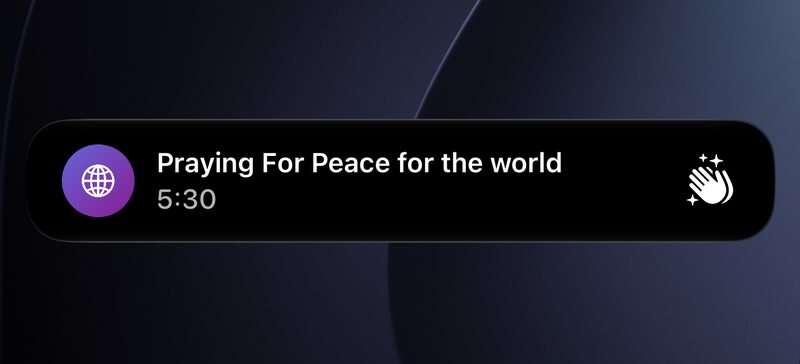
When you have more time, open the prayer and tap the Pray button. Stay as long as you need, and finish with Amen. On iPhone, the timer also shows on your Lock Screen as a Live Activity, and in the Dynamic Island on iPhone models that have one.
Reach out
On a prayer linked to a contact, tap Call, Text or Email, so they know they’re not carried alone.
When God answers
Swipe Answered, or mark the prayer answered from its page. If you like, write down how God answered. The app asks, “How was this prayer answered?” On iPhone and iPad, a quiet moment of light marks it.
Answered prayers are kept in Prayer Life, under Completed, with how many times you prayed and how long you carried each one.
Some prayers are answered soon. Some you carry for years. Each one keeps the day you began and how many times you’ve prayed.

Scan a prayer card
Photograph a prayer card, a church bulletin or a handwritten list. It’s read on your device, and nothing is added until you review it. Check each request, choose Someone, Myself or Situation, and add the ones you want.
Scanning is on iPhone and iPad.


Scripture
The Bible, beside your prayers.
PrayerList Pro is a Bible and journal app in one. Read a chapter, then carry the verse that stays with you into your journal or onto a prayer.

Six editions, four languages
Read the NIV, the ESV or the World English Bible in English, the Nueva Versión Internacional (NVI) in Spanish, the Nova Versão Internacional (NVI) in Brazilian Portuguese, or La Bible du Semeur in French.
The Bible opens in the same language as the app, and you can switch to any of the six editions at any time. There’s no Afrikaans Bible yet, so in Afrikaans the app starts with the NIV.
The publisher’s copyright notice appears under every chapter.
From the page to your prayers
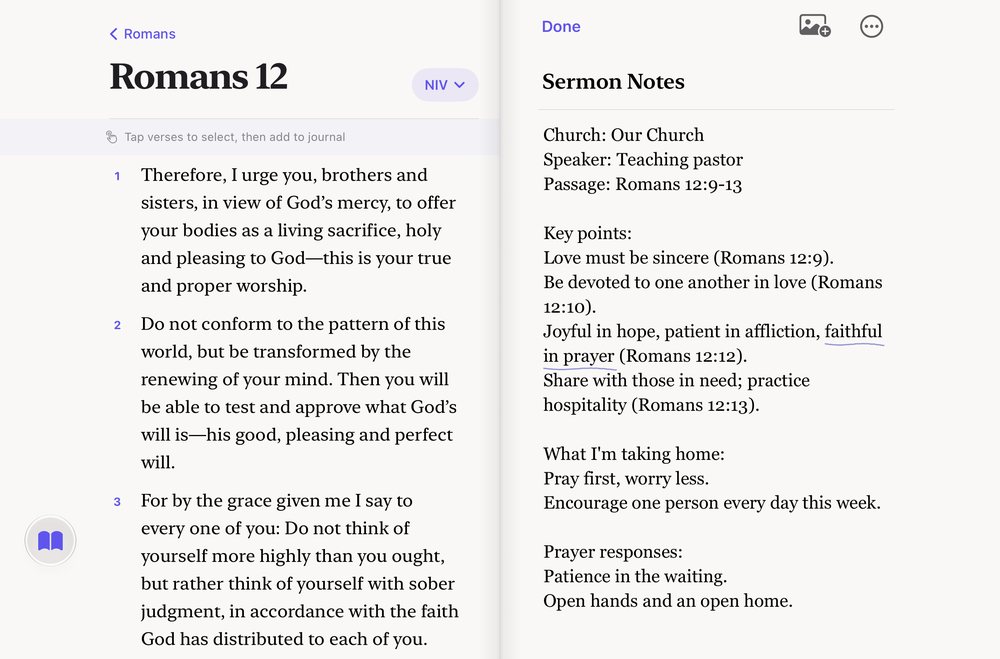
Tap verses to add them to your journal, with the reference included. On a prayer, Add Bible Verse keeps the verses that speak to it right beside the request.
On iPad, open the Bible beside your journal page. On Mac, the Bible is in the sidebar.
Reading the Bible needs an internet connection. The Bible isn’t part of the Apple TV app.
Journal
A prayer journal that feels like paper.
PrayerList Pro is also a Christian prayer journal: one continuous page for your prayers, the Scripture you’re reflecting on, and what you notice God doing.
Type, write or draw
- Type, format your words and add photos, all on one continuous page.
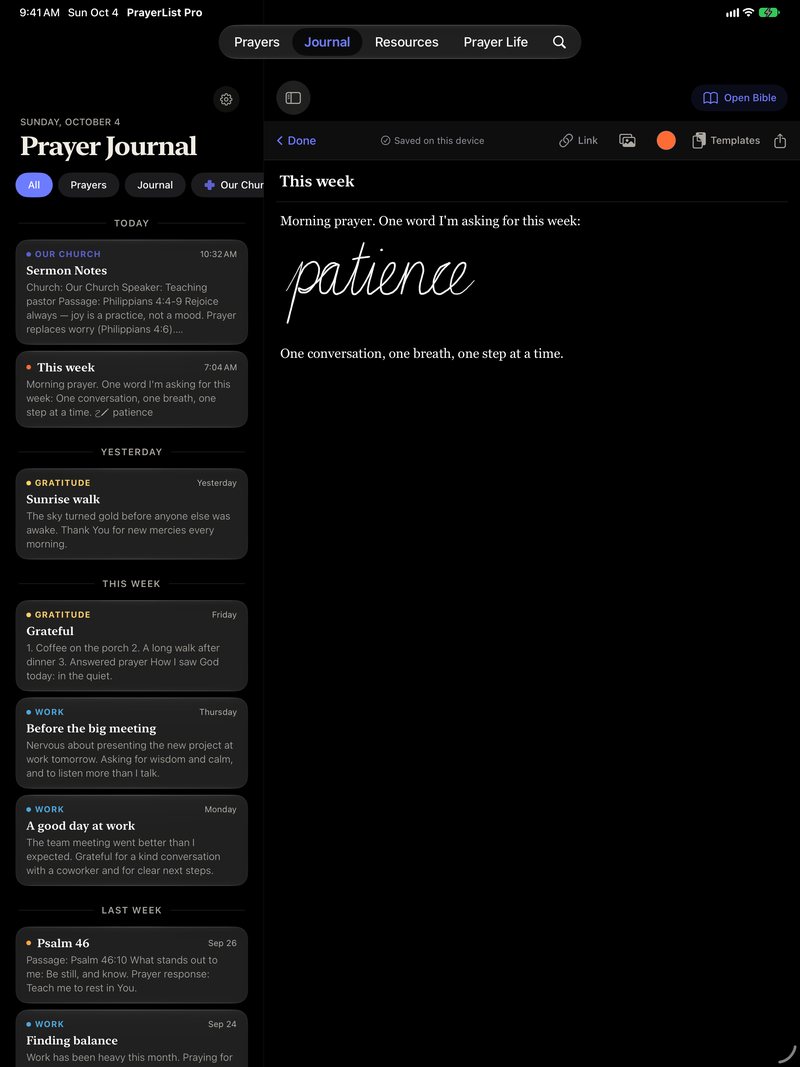
- On iPad, write or draw anywhere on the page with Apple Pencil. No Apple Pencil? Tap Draw and use your finger.
- Add a description to a drawing or a photo, so VoiceOver can read it to you.
Writing and drawing with Apple Pencil are on iPad. The Mac app’s journal doesn’t include drawing.
Find it again
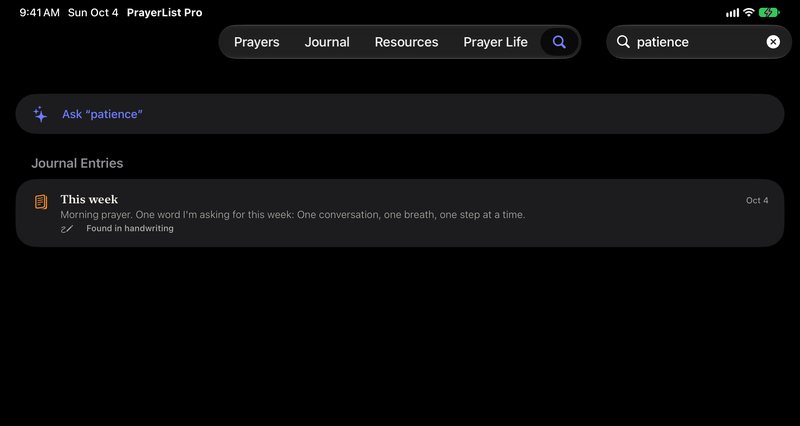
Search looks through your prayers, groups and journal, handwriting included. Words you wrote by hand are recognized on your device, and those results are marked “Found in handwriting”.
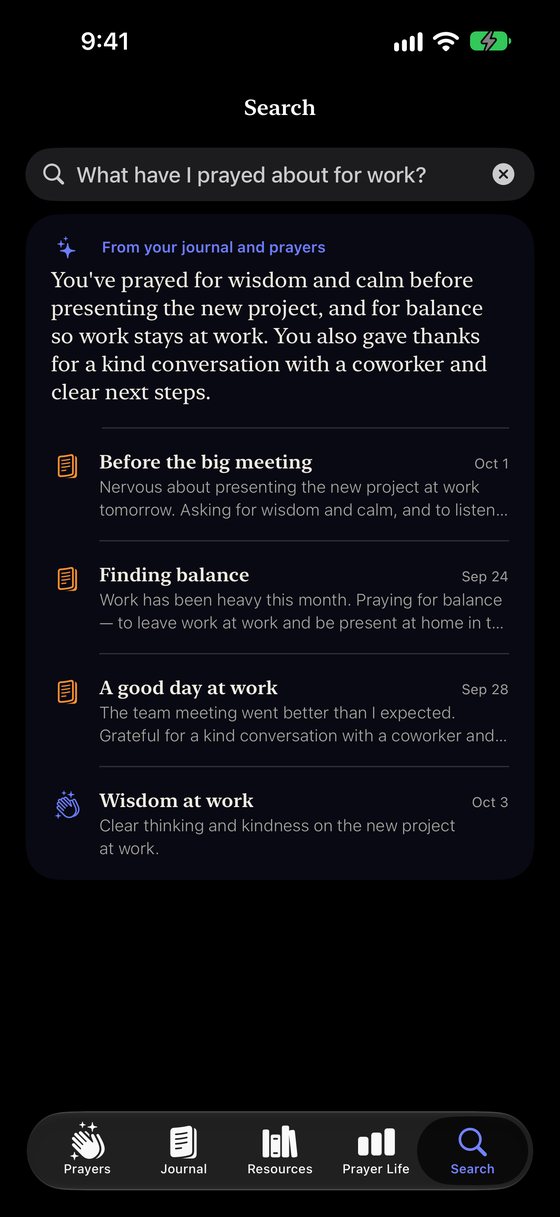
On iPhone and iPad models with Apple Intelligence, you can also use Ask. Type a question in your own words, like “What have I prayed about for work?” The answer comes from your own entries and prayers, shows which ones it used, and is worked out on your device.
Search and Ask are on iPhone and iPad. Ask needs Apple Intelligence turned on and a language it supports. Otherwise, Search shows its regular results.
Begin, and keep what you write
- Start from a template: Gratitude, Scripture Reflection, Prayer & Praise or Sermon Notes. Or make your own.
- On iPhone, Journaling Suggestions can start an entry from a moment in your day, like a photo or a walk.
- Link an entry to a prayer, so what you wrote stays with the person you prayed for.
- Export your journal as a text file, or share an entry as an image.

A gentle rhythm
Short prayers still count.
A prayer reminder app should help you remember, not make you feel behind. Some days you’ll pray for twenty minutes, some days for one. Both are prayer.
Reminders you choose
Each reminder belongs to one prayer, so it comes at the time you chose for that person or need.
If you’d like, turn on Gentle Prayer Reminders. You get a soft nudge only if you haven’t opened the app in more than five days. It says, “It’s been a few days — take a quiet moment to pray.”
Prayer Life
Prayer Life keeps a record to look back on: your time in prayer over the past 7 days, the past 30 days and all time, how many times you’ve prayed, a This Week chart, and the prayers God has answered.
Prayer Life also shows how many days in a row you’ve prayed. If you miss a day, that number starts again. Your prayers and answered prayers stay just where they are.
Short sessions still count — presence over duration.
Apple Health, if you want it
With your permission, timed prayers and journal writing sessions can be saved to Apple Health as Mindful Minutes, so time spent in prayer is remembered as rest.
Apple Health is optional, on iPhone, iPad and Apple Watch. A quick I Prayed tap isn’t saved to Health. PrayerList Pro reads and writes only Mindful Minutes, and you can turn off its access at any time in your device’s Health settings.
Keep today’s names in view
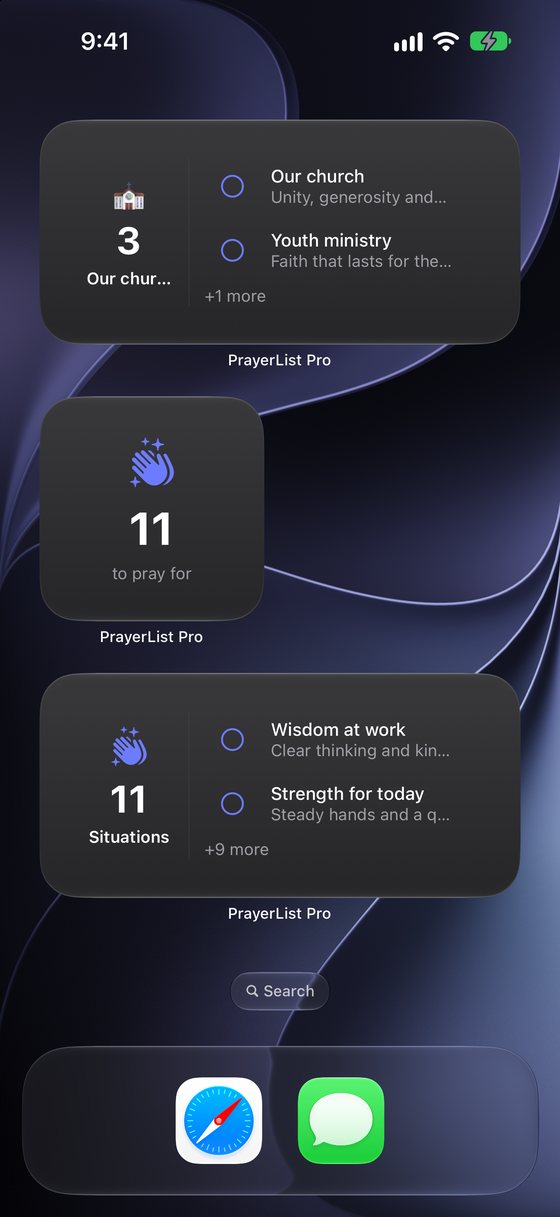
Home Screen widgets on iPhone and iPad show who’s next. Choose what each one shows: Up Next, All Active, People, Situations or one of your groups. Tap the circle beside a prayer to mark it prayed, without opening the app.
A Lock Screen widget shows who’s next on your list.
Lock your iPhone mid-prayer, and the timer stays on the Lock Screen until you tap Amen.
Church and small groups
At church, and in your small group.
Take sermon notes in a quiet space, then carry what you heard into your prayers for the week.
Church Mode
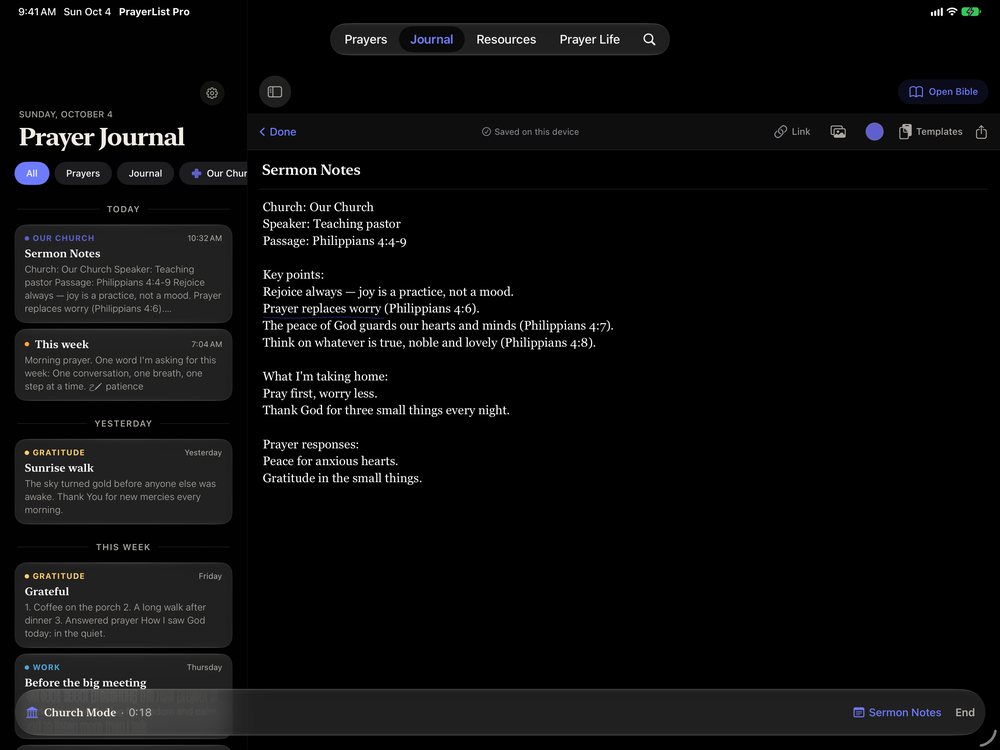
Church Mode opens Sermon Notes with your church already filled in. While it’s on, reminders don’t pop up inside the app. They wait in Notification Center.
To silence prayer reminders on the Lock Screen during the service too, add PrayerList Pro’s Church Mode filter to a Focus.
Start Church Mode from the journal, from Siri, or from Church Notes in Control Center.
Sermon Recap
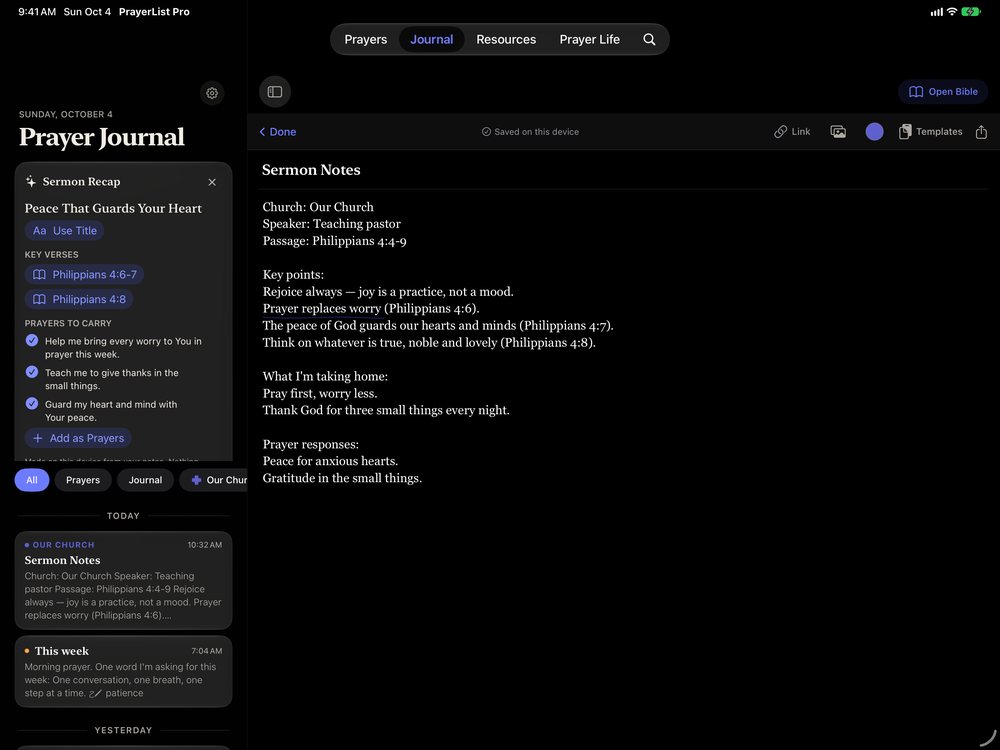
Sermon Recap suggests a title, the key verses you noted and up to three prayers to carry into the week. Add the prayers you want to your list. The recap is made on your device, on iPhone and iPad models with Apple Intelligence.
Church Mode and Sermon Recap are on iPhone and iPad. Sermon Recap needs Apple Intelligence turned on and a language it supports.
Bulletins and prayer sheets
Scan a church bulletin to turn its requests into prayers, the same way you scan a prayer card. To share a list with others, export it as a PDF bulletin or as text. Only prayer requests are exported, never your prayer activity, journal or contact details.
Devotionals in Resources
In Resources, browse devotional series and videos, follow a series, and keep track of where you are. You can get a daily reminder for the series you follow. Most Resources content is in English.
Gathering a room to pray? See the Prayer Wall on Apple TV.
Praying together
Pray together.
Some prayers are better carried together. Share them with people you trust, and know exactly who sees what. Your prayers hold other people’s stories.
Shared prayer groups
Share a prayer group with family, friends or a small group through iCloud. No one needs a new account. Send an invite link, and choose whether people can Add & edit prayers or View only. Members see who added each prayer.
Everyone in the group sees its prayer requests, its answered prayers and when someone prays. Your journal, notes, voice notes and streak are never shared.
Sharing needs iCloud, and anyone with the invite link can join. Shared groups aren’t available on Apple Watch or Apple TV.
Requests in Messages
Ask for prayer without leaving a conversation. In Messages, send a prayer request, and friends who use PrayerList Pro can tap Add to My Prayer List.
Prayer requests in Messages work on iPhone and iPad.
A Prayer Wall on Apple TV
Put a Prayer Wall on the TV at church, at a small group or at home. People scan the QR code and send a request from their phone’s browser. A name is optional.
Everyone in the room can see the wall, and requests are cleared when the session ends.
The Prayer Wall runs on Apple TV.
Prayer Wall requests and shared groups are stored differently from your own prayers. Our privacy policy explains how.
Across your Apple devices
There when you reach for it. Quiet when you don’t.
PrayerList Pro lives on the Apple devices you already use, so prayer can meet you in the moments you have. Your prayers and journal sync through your own private iCloud account. Features vary by device.
iPhone
Your prayer list, the Bible and your journal. Home Screen and Lock Screen widgets, a Live Activity while you pray, Control Center controls, Siri and Shortcuts, Spotlight, Search, Ask on models with Apple Intelligence, scanning prayer cards and Journaling Suggestions.
Requires iOS 26 or later. Widgets need iOS 26.2 or later.
iPad
Room to spread out: your list beside each prayer, Apple Pencil anywhere in the journal, handwriting search, the Bible beside your page, Church Mode, widgets, Control Center, Siri, scanning and keyboard shortcuts.
Requires iPadOS 26 or later. Widgets need iPadOS 26.2 or later.
Mac
Your prayer list and journal on your desk, the Bible in the sidebar, menu commands with keyboard shortcuts, and iCloud sync. There’s no Apple Pencil drawing on Mac. Search, Ask, Church Mode, Siri shortcuts, Spotlight and scanning are iPhone and iPad features today.
Requires macOS 26 or later.
Apple Watch
See your list, add prayers, mark them prayed and pray in a full-screen session. With your permission, sessions can be saved to Apple Health as Mindful Minutes. Complications show what’s left to pray.
Requires watchOS 26.2 or later.
Apple Vision Pro
Your prayers, journal and Bible each open in their own window, and you can fold your hands to begin praying. The app asks before using hand tracking.
Requires visionOS 26 or later.
Apple TV
Your prayer list on the big screen, and a Prayer Wall for everyone in the room. The journal and the Bible aren’t on Apple TV.
Requires tvOS 26.2 or later.
iMessage
In Messages on iPhone and iPad, send a prayer request. Friends who use PrayerList Pro can add it to their own list.
Requires iOS or iPadOS 26.2 or later.
iPhone Duo
Built for iPhone Duo: open it like a book with the Bible beside your journal, lay it flat for a full page, or stand it half-folded as a prayer desk. Fold it mid-prayer and your prayer keeps going.
See PrayerList Pro on iPhone Duo
iPhone Duo layouts need iOS 27.1 or later.
Keyboard shortcuts on iPad and Mac
Press ⌘N for a new journal entry or ⇧⌘P for a new prayer. On iPad, ⌘D adds a drawing to your journal page. On Mac, the menus show their shortcuts, like ⇧⌘B to open the Bible. Here, ⌘ is Command and ⇧ is Shift.
Without opening the app
- Tell Siri, “I prayed for Mom in PrayerList Pro,” and Mom’s prayer is marked prayed. You can also add a prayer or start a journal entry by voice.
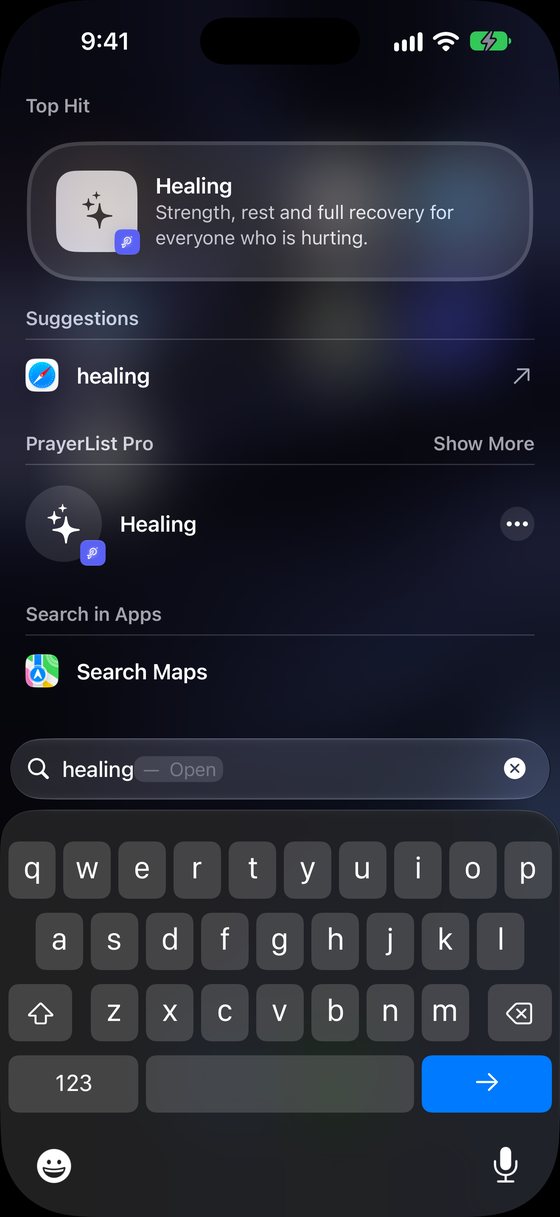
- Find prayers and journal entries in Spotlight. If you’d rather not, turn off Show in Spotlight & Siri Suggestions in the app’s Settings.
- From Control Center, open your prayer list, start a new journal entry or begin Church Notes.
- Start on one device and continue on another with Handoff.
- Press and hold the app icon for quick actions.
Siri shortcuts, Spotlight and Control Center work on iPhone and iPad.

Requires iOS, iPadOS, macOS or visionOS 26 or later, or watchOS or tvOS 26.2 or later. Features vary by device.
Sacred and private
Between you and God.
Your prayers hold other people’s stories, so they deserve care. They live on your devices and in your own private iCloud account, not on servers we run.
- Price
- Free to download and use, with no subscription and nothing locked. If you’d like to support the work, you can leave an optional tip in the app. Tips unlock nothing extra.
- Account
- None to create. PrayerList Pro works without iCloud. Syncing and shared groups use the iCloud account already on your device.
- Where your prayers live
- On your devices and in your own private iCloud account. We can’t access the prayers and journal in your private iCloud. Groups you share are seen by the people who join them.
- App Store privacy label
- Data Not Collected. There are no ads in the app, and no third-party analytics or crash-reporting tools.
- Bible lookups
- When you open a passage, the app asks a Bible service for it by reference. It never sends your prayers or journal.
- Apple Intelligence
- Ask and Sermon Recap use Apple Intelligence on your device, on supported iPhone and iPad models. Prayer cards are read on your device too. Nothing is sent to a server.
- Lock App
- Lock the app with Face ID, Touch ID or your passcode. Widgets and reminder notifications can still show prayer text.

Wherever today finds you, there’s room to pray.
Start with one name. PrayerList Pro is free to download and use, with every feature for everyone.

Free for iPhone, iPad, Mac, Apple Watch, Apple TV and Apple Vision Pro. Features vary by device.